
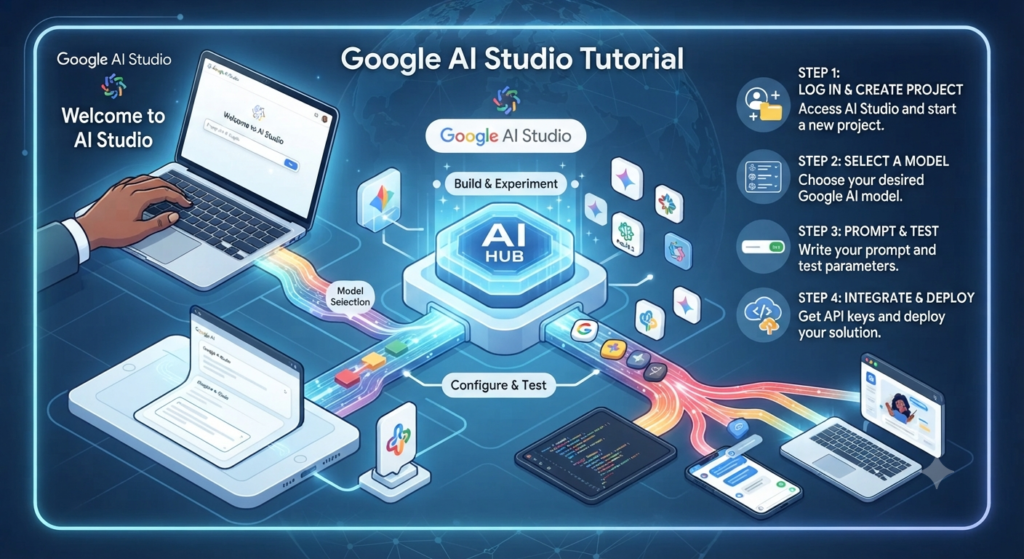
How to Use Google AI Studio for Building AI Applications: A Complete Beginner’s Guide
Artificial intelligence is transforming how individuals and businesses develop software, automate workflows, create digital content and solve complex problems. However, building AI-powered applications traditionally requires programming knowledge, access to machine learning infrastructure and familiarity with advanced development technologies.
Google AI Studio simplifies this process by providing an accessible environment where users can experiment with artificial intelligence models, develop prompts, generate application code and integrate AI capabilities into software products. Powered by Google’s Gemini models, Google AI Studio enables beginners and experienced developers to create intelligent applications without training their own artificial intelligence models.
Whether you want to develop an AI chatbot, automated content generator, educational assistant, SEO analysis tool or business automation application, Google AI Studio provides a practical starting point. In this comprehensive tutorial, you will learn how to access the platform, configure models, design effective prompts, generate API keys, write Python and JavaScript code, build applications and prepare them for deployment.
Know More: AI Interview Preparation: 10 Powerful Ways to Ace Your Next Job Interview
Google AI Studio Tutorial: Introduction
Google AI Studio is a browser-based development platform designed to help users experiment with Google’s artificial intelligence models and integrate their capabilities into applications. The platform bridges the gap between AI model experimentation and practical software development. Rather than developing machine learning models from scratch, users can access existing AI capabilities through an interactive interface or the Gemini API.
Google AI Studio provides access to tools for text generation, reasoning, image generation, speech processing, video generation and multimodal interactions, depending on the selected model and account. For beginners, it provides an environment for learning prompt engineering and AI application development. For experienced developers, it offers a convenient way to prototype features before integrating them into production software.
How Does Google AI Studio Work?
Google AI Studio allows users to interact with AI models through prompts and application programming interfaces. A typical development workflow includes defining a problem, selecting a suitable model, testing prompts, connecting the model to application code and evaluating the results.
|
Stage |
Activity |
|---|---|
|
1. Define an application idea |
Identify the problem and user requirements |
|
2. Select a Gemini model |
Choose suitable AI capabilities |
|
3. Develop and test prompts |
Experiment inside the playground |
|
4. Create an API key |
Authenticate application requests |
|
5. Build the application |
Use generated code or custom development |
|
6. Test and improve |
Evaluate accuracy, security and performance |
|
7. Deploy |
Publish and monitor the software |
This development process allows users to experiment with ideas before investing significant resources in software engineering.
Top 15 Features of Google AI Studio
|
Feature |
Primary function |
|---|---|
|
AI Model Playground |
Test artificial intelligence models |
|
Gemini API Integration |
Connect AI capabilities with applications |
|
Build Mode |
Generate applications using natural language |
|
Prompt Engineering |
Develop and refine model instructions |
|
System Instructions |
Define expected AI behaviour |
|
Multimodal AI |
Process supported text, images, audio and video |
|
Structured Outputs |
Generate machine-readable responses |
|
Function Calling |
Connect models with external functions |
|
Google Search Grounding |
Support answers with retrieved information |
|
Code Generation |
Generate and modify application code |
|
Live API |
Support real-time AI interactions |
|
Image Generation |
Generate visual content using supported models |
|
Android App Development |
Build native Android prototypes where available |
|
Application Deployment |
Publish supported applications |
|
Usage Dashboard |
Monitor API consumption |
Different Gemini models support different capabilities. Check the documentation for the selected model before implementing a feature.
Google AI Studio vs Google Gemini
|
Feature |
Google Gemini |
Google AI Studio |
|---|---|---|
|
Primary purpose |
Everyday AI assistance |
AI application development |
|
Audience |
General users |
Developers and enthusiasts |
|
Prompt testing |
Supported |
Developer workflow |
|
API key management |
Not primary purpose |
Supported |
|
Model configuration |
More limited |
Developer controls |
|
Application development |
General assistance |
Build mode |
|
Code integration |
Coding assistance |
Gemini API integration |
|
Usage monitoring |
Consumer features |
Developer dashboard |
|
Best for |
Research and productivity |
Prototyping and development |
Google Gemini is suitable for everyday activities such as answering questions, brainstorming and writing. Google AI Studio is more appropriate when the objective is creating customised AI-powered software.
How to Use Google AI Studio: Step-by-Step Tutorial
Step 1: Visit the official website
Open https://aistudio.google.com/ in your browser. Sign in using your Google account and accept the applicable terms. Explore the development workspace, playground, application builder and developer dashboard. Beginners can start by experimenting with prompts.
Step 2: Explore the dashboard
Identify the workspace according to your intended activity rather than relying exclusively on button locations, which may change.
|
Workspace |
Purpose |
|---|---|
|
Playground |
Experiment with models and prompts |
|
Build |
Generate and modify applications |
|
App Gallery |
Explore application examples |
|
API Keys |
Manage authentication credentials |
|
Dashboard |
Monitor projects and usage |
|
Documentation |
Learn development methods |
Step 3: Select the appropriate AI model
Selecting a model depends on performance requirements, input formats, response quality and operating budget. Check current model identifiers, availability, pricing and context limits in the official model catalogue.
|
Model family |
Recommended application |
|---|---|
|
Gemini Flash |
Responsive general-purpose applications |
|
Gemini Pro |
Complex analysis and reasoning |
|
Nano Banana |
Image generation and editing |
|
Veo |
Video generation |
|
Gemini Live |
Real-time conversational experiences |
|
Gemini TTS |
Text-to-speech applications |
|
Lyria |
Music generation |
Step 4: Create your first AI prompt
Navigate to the Playground and select an available text-capable Gemini model. Enter a question or instruction in the prompt field.
Explain artificial intelligence to a beginner.
Include:
- A simple definition
- Five practical applications
- Three advantages
- Three limitations
- A real-world example
Use simple English and clear headings.
Run the prompt and review the response. If the explanation is too complicated, refine the instructions to specify the target audience and expected complexity. Effective prompts include the task, context, constraints and desired output format.
Step 5: Configure system instructions
System instructions help establish the expected behaviour of an AI assistant. For example:
You are an educational AI assistant specialising in science and mathematics.
Explain concepts using simple English.
Provide step-by-step explanations and practical examples.
Do not invent scientific facts or examination statistics.
If information is uncertain, clearly state the limitation.
Encourage students to understand concepts rather than memorise answers.
System instructions provide behavioural guidance but do not guarantee compliance. Implement additional validation and security controls.
Step 6: Understand model configuration settings
|
Parameter |
Purpose |
|---|---|
|
Temperature |
Influences output variability on supported models |
|
Top-P |
Controls token sampling on compatible models |
|
Output token limit |
Restricts maximum response length |
|
Thinking level or budget |
Controls reasoning effort where supported |
|
System instructions |
Establishes behavioural guidance |
|
Structured output |
Specifies machine-readable response structure |
|
Safety settings |
Configures supported safety controls |
|
Grounding |
Connects responses with retrieved information |
Some newer models recommend default sampling settings. Do not assume every parameter is supported. For predictable structured output, use a supported response schema and validate generated data.
Step 7: Generate your Gemini API key
An API key allows applications to authenticate requests. Sign in, open API Keys, select or create a project, generate or locate the key, store it securely and configure it as an environment variable. Configure billing where required. Never publish API keys in public repositories, WordPress JavaScript, screenshots or client-side code. An exposed key may allow unauthorised usage and unexpected charges.
Step 8: Generate and integrate application code
After testing prompts, use the available code-generation or API documentation options to connect Gemini with your application. Google provides official SDKs for Python and JavaScript, allowing integration into websites, business software, mobile applications and automated workflows.
Google Gemini API Tutorial Using Python
Python is popular for AI development because of its readable syntax and extensive ecosystem. Install the Google GenAI SDK:
pip install -U google-genai
Configure your API key and a currently supported model identifier. Windows PowerShell:
$env:GEMINI_API_KEY=”YOUR_API_KEY”
$env:GEMINI_MODEL=”YOUR_MODEL_ID”
macOS or Linux:
export GEMINI_API_KEY=”YOUR_API_KEY”
export GEMINI_MODEL=”YOUR_MODEL_ID”
Create app.py. The Interactions API example below requires a compatible SDK and model. Replace YOUR_MODEL_ID using the official model catalogue.
import os
from google import genai
client = genai.Client()
response = client.interactions.create(
model=os.environ[“GEMINI_MODEL”],
input=”Explain machine learning in simple English.”
)
print(response.output_text)
python app.py
Illustrative output: Machine learning is a type of artificial intelligence that allows computers to learn patterns from data and make predictions or decisions without being explicitly programmed for every situation. Actual responses may differ.
Google Gemini API Tutorial Using JavaScript
JavaScript is widely used for web applications and server-side services. Install the official SDK in a Node.js project:
npm install @google/genai
Create app.mjs:
import { GoogleGenAI } from “@google/genai”;
const ai = new GoogleGenAI({});
const response = await ai.interactions.create({
model: process.env.GEMINI_MODEL,
input: “Explain the benefits of artificial intelligence.”
});
console.log(response.outputText);
Set GEMINI_API_KEY and GEMINI_MODEL before running:
node app.mjs
This example is intended for server-side Node.js, not browser-side JavaScript containing exposed credentials.
How to Build an AI Chatbot Using Google AI Studio
AI chatbots can support educational learning, customer service, product recommendations and business communication. The following Python example demonstrates a basic question-and-answer chatbot.
import os
from google import genai
client = genai.Client()
MODEL = os.environ[“GEMINI_MODEL”]
print(“Welcome to the KnowledgeScribe AI Assistant!”)
print(“Type exit to close the application.”)
while True:
question = input(“\nYou: “).strip()
if question.lower() == “exit”:
print(“AI: Thank you for using the assistant.”)
break
if not question:
continue
try:
response = client.interactions.create(
model=MODEL, input=question
)
print(“AI:”, response.output_text)
except Exception:
print(“Request failed. Please try again.”)
This application repeatedly accepts questions and generates responses. It is not a complete conversational chatbot with persistent memory. Developers can extend it with interaction history, authentication, rate limiting and application-specific instructions.
Practical Example: Build an AI SEO Metadata Generator
SEO professionals frequently need to develop page titles, meta descriptions, URL slugs and excerpts. Google AI Studio can help prototype an application that automates initial drafting.
import os
from google import genai
client = genai.Client()
topic = input(“Enter your article topic: “).strip()
prompt = f”””
Act as an experienced SEO content editor.
Article topic: {topic}
Generate:
- SEO title, preferably within 60 characters.
- Meta description, preferably within 155 characters.
- SEO-friendly URL slug.
- Article excerpt of approximately 45 words.
- One primary keyword.
- Five relevant secondary keywords.
Do not invent keyword search volumes.
Use clear English and label every section.
“””
response = client.interactions.create(
model=os.environ[“GEMINI_MODEL”], input=prompt
)
print(response.output_text)
Example input: How to Use Google AI Studio. Illustrative output:
|
SEO element |
Generated example |
|---|---|
|
SEO title |
Google AI Studio Tutorial for Beginners |
|
Meta description |
Learn how to use Google AI Studio, create API keys, test Gemini models and develop AI applications with simple coding examples. |
|
Slug |
google-ai-studio-tutorial |
|
Primary keyword |
Google AI Studio Tutorial |
|
Secondary keywords |
Gemini API Tutorial; Google AI Studio for Beginners; AI Application Development |
Developers could extend this application with automatic character counting, structured JSON responses and WordPress integration. Review generated recommendations for search intent, accuracy and editorial quality.
How to Build a Web Application Without Advanced Coding
Build mode allows users to describe applications using natural language. Supported development environments may generate frontend and backend components and native Android projects.
Step 1: Open Build mode
Sign in and select Build. Choose the web application platform for your first project.
Step 2: Describe your application
Build a professional AI-powered SEO metadata generator
called KnowledgeScribe SEO Assistant.
– Responsive desktop and mobile interface.
– Article topic and primary keyword input fields.
– Generate SEO titles, meta descriptions, slugs and excerpts.
– Display character counts and copy buttons.
– Support light and dark mode.
– Use emerald green, navy blue and white styling.
– Keep Gemini API credentials on the server.
– Validate inputs and handle API errors.
Step 3: Generate the application
Submit the requirements. Review the generated project files and live preview.
Step 4: Test and improve
Improve the mobile layout.
Add loading indicators while requests are processing.
Validate the topic field before submission.
Prevent duplicate requests.
Add server-side rate limiting.
Improve accessibility and keyboard navigation.
Step 5: Review generated code
Inspect source code and verify credentials, errors, user input and external requests. AI-generated code is not automatically secure or production-ready.
Step 6: Prepare for deployment
Use an available deployment workflow or move reviewed code to your preferred environment. Google Cloud Run is a deployment option; hosting and API usage may incur separate charges.
Understanding Multimodal AI
Multimodal AI processes different types of information rather than relying exclusively on text.
|
Modality |
Example application |
|---|---|
|
Text |
Chatbots and content generation |
|
Images |
Image descriptions and visual analysis |
|
Audio |
Transcription and speech processing |
|
Video |
Educational video analysis |
|
Documents |
Summary and information extraction |
|
Generated images |
Marketing graphics |
|
Generated speech |
Voice assistants |
|
Generated video |
Creative media |
An educational application could accept a photograph of a physics question and provide a written explanation. A marketing application could analyse an advertisement and suggest improvements. Confirm file size, format and model compatibility requirements.
What Are Structured Outputs and Function Calling?
Structured outputs help applications obtain machine-readable information such as JSON instead of relying exclusively on natural language responses. An SEO application could request the following structure:
{
“seo_title”: “Google AI Studio Tutorial”,
“meta_description”: “Learn to build AI applications.”,
“slug”: “google-ai-studio-tutorial”,
“primary_keyword”: “Google AI Studio Tutorial”
}
For reliable integration, configure a supported schema and validate returned data. Function calling allows a model to request execution of defined external functions. An SEO dashboard could expose an approved function that retrieves organic traffic from an authorised analytics integration. The application manages execution according to its permissions. Sensitive operations require validation, access controls and user approval.
10 Best Google AI Studio Prompts for Practical Applications
1. AI Content Writing Application
Create an AI content writing application that accepts an article topic, target audience and tone. Generate a structured outline, introduction, headings, conclusion and SEO metadata. Include factual verification reminders.
2. AI Educational Assistant
Build an educational chatbot for students preparing for competitive examinations. Include subject selection, concept explanations, practice questions, detailed solutions and progress tracking.
3. AI SEO Audit Assistant
Create an SEO audit assistant that analyses user-provided website audit data. Identify technical issues, prioritise recommendations and generate an actionable checklist. Do not invent crawl or ranking data.
4. AI Resume Builder
Build a professional resume generation application that collects educational qualifications, professional experience, achievements and skills. Generate an editable resume without inventing qualifications.
5. AI Customer Support Chatbot
Create a customer support chatbot that answers questions using approved company documentation. Escalate unsupported questions to a human representative and protect confidential customer information.
6. AI Social Media Content Generator
Develop an application that generates social media captions, campaign ideas and content calendars based on brand guidelines, audience characteristics and marketing objectives.
7. AI Document Summariser
Build a document analysis application that accepts supported files and generates executive summaries, key findings, action items and important questions for further investigation.
8. AI Keyword Clustering Tool
Create an application that groups user-provided keywords according to topic, semantic relevance and search intent. Present clusters in a table without fabricating search volume or difficulty metrics.
9. AI Business Proposal Generator
Develop an application that generates business proposals using project requirements, scope, budget, estimated timelines, deliverables and client information. Include editable sections.
10. AI Interview Preparation Assistant
Build an interview preparation application that accepts a job description and experience level. Generate relevant interview questions, suggested answers, technical exercises and constructive feedback.
These prompts can serve as initial application specifications and can be expanded with more detailed functional requirements.
15 AI Applications You Can Build
|
Application |
Target audience |
|---|---|
|
AI chatbot |
Businesses and developers |
|
SEO metadata generator |
SEO professionals |
|
Blog content assistant |
Bloggers |
|
Keyword clustering tool |
Digital marketers |
|
AI resume builder |
Job seekers |
|
Interview preparation assistant |
Students and professionals |
|
AI study assistant |
Students |
|
Document summariser |
Researchers |
|
Customer support assistant |
Businesses |
|
Social media generator |
Marketing professionals |
|
AI translation assistant |
International businesses |
|
AI email generator |
Corporate teams |
|
Image analysis tool |
Designers and researchers |
|
AI coding assistant |
Software developers |
|
Business report generator |
Managers and entrepreneurs |
Beginners should initially develop applications with a limited number of clearly defined features. After validating basic functionality, introduce additional capabilities and integrations.
Google AI Studio Free vs Paid API Plans
|
Feature |
Free tier |
Paid tier |
Enterprise |
|---|---|---|---|
|
Model access |
Selected models |
Broader access |
Enterprise options |
|
Usage limits |
More restrictive |
Higher limits |
Provisioned options |
|
Charges |
Eligible allowances |
Usage-based |
Usage or contract-based |
|
Context caching |
Restricted |
Where supported |
Where supported |
|
Batch processing |
Restricted |
Where supported |
Where supported |
|
Security |
Standard |
Developer controls |
Advanced options |
|
Best for |
Learning |
Production |
Large organisations |
Google pricing distinguishes free and paid processing, including usage limits and data-handling terms. API charges depend on input and output tokens, selected model, processing method and additional tools. Consult current official pricing before launch.
Example API cost calculation
Hypothetical rates only: 10,000 requests per month, 1,000 input tokens and 500 output tokens per request, at $0.50 per million input tokens and $3 per million output tokens.
|
Component |
Calculation |
Cost |
|---|---|---|
|
Input |
10,000 × 1,000 / 1,000,000 × $0.50 |
$5.00 |
|
Output |
10,000 × 500 / 1,000,000 × $3 |
$15.00 |
|
Total |
Input plus output |
$20.00 |
Excludes hosting, taxes, additional tools, separately billed reasoning tokens and other services. Pricing: https://ai.google.dev/gemini-api/docs/pricing
Google AI Studio vs OpenAI API vs Microsoft Foundry
|
Feature |
Google AI Studio |
OpenAI API |
Microsoft Foundry |
|---|---|---|---|
|
Models |
Gemini |
OpenAI |
Multiple providers |
|
Browser experimentation |
Supported |
Supported |
Supported |
|
Text generation |
Yes |
Yes |
Yes |
|
Multimodal |
Model-dependent |
Model-dependent |
Model-dependent |
|
Structured outputs |
Supported |
Supported |
Model-dependent |
|
Function calling |
Supported |
Supported |
Model-dependent |
|
Prototyping |
Strong focus |
Supported |
Supported |
|
Cloud integration |
Google Cloud |
External integrations |
Azure |
|
Learning curve |
Beginner-friendly |
Developer-friendly |
Enterprise-oriented |
|
Pricing |
Usage-based |
Usage-based |
Service-dependent |
|
Best for |
Gemini development |
OpenAI integration |
Enterprise development |
The most suitable platform depends on application requirements, infrastructure, available models, performance expectations and budget.
Advantages and Disadvantages
|
Advantages |
Disadvantages |
|---|---|
|
Browser-based development |
Internet required |
|
Beginner-friendly experimentation |
Generated code requires review |
|
Free-tier experimentation |
Production usage can incur charges |
|
Multiple model families |
Availability can change |
|
Official Python and JavaScript SDKs |
Integration requires technical knowledge |
|
Multimodal applications |
Usage restrictions |
|
Prompt-based development |
Complex apps require engineering |
|
Google Cloud integration |
Billing can be complicated |
|
Structured outputs |
AI responses may be inaccurate |
|
Rapid prototyping |
Security and privacy require controls |
Common Google AI Studio Errors and Solutions
|
Problem |
Possible cause |
Solution |
|---|---|---|
|
400 Bad Request |
Invalid parameters |
Review request structure |
|
401 Authentication Error |
Invalid credentials |
Check key configuration |
|
403 Permission Denied |
Project restrictions |
Review permissions |
|
404 Model Not Found |
Invalid or retired model |
Check model documentation |
|
429 Resource Exhausted |
Quota exceeded |
Review limits and retry with backoff |
|
500 Internal Server Error |
Temporary problem |
Retry after a short interval |
|
Empty response |
Safety or processing issue |
Inspect response status |
|
SDK import error |
Missing or outdated SDK |
Install or update package |
|
Unexpected charges |
Excessive usage |
Monitor and enforce limits |
|
Preview failure |
Code errors |
Inspect logs and dependencies |
Implement error handling rather than exposing internal information to users.
Is Google AI Studio Safe for Application Development?
Developers remain responsible for protecting applications, credentials and user information. Store API keys securely on the server, validate inputs, implement authentication and restrict external tool permissions. Avoid uploading confidential customer records, sensitive financial documents or proprietary business information without authorisation. Review applicable free and paid service data-handling terms. Protect against prompt injection, unauthorised tool execution, excessive requests and misleading outputs. Establish monitoring, incident response and data retention policies for commercial applications.
Best Practices for Building AI Applications
Begin with a clearly defined problem and identify the smallest useful application. Test prompts using representative examples, including ambiguous questions, invalid inputs and difficult edge cases. Compare models according to response quality, latency, supported features and operating costs. Use structured outputs for databases or software interfaces. Maintain server-side authentication and protect credentials. Monitor token usage, implement rate limits and validate outputs before consequential decisions. Collect user feedback and continuously improve observed performance.
”FAQs”
1. What is Google AI Studio used for?
Experimenting with AI models, developing prompts, generating API keys, prototyping applications and integrating Gemini capabilities.
2. Is Google AI Studio free to use?
Eligible experimentation features and selected API models have free access. Advanced models, higher usage and other services may require payment.
3. Can beginners use Google AI Studio?
Yes. Beginners can experiment with prompts and create prototypes using natural language.
4. Do I need coding knowledge?
Basic experimentation does not require advanced coding knowledge. Production development benefits from programming and security expertise.
5. How do I generate a Gemini API key?
Sign in, open API Keys and create or locate a key associated with your project.


