
How to Use Google NotebookLM: A Complete Step-by-Step Tutorial for Beginners in 2027
Artificial intelligence has transformed how people search for information, prepare educational materials, conduct research, and manage professional documents. However, analysing hundreds of pages of information, identifying important insights, and organising research materials can still be time-consuming.
Google NotebookLM is designed to simplify these tasks.
Unlike conventional AI chatbots that primarily generate responses using their general knowledge, NotebookLM allows users to create personalised research environments using their own information sources.
Whether you are a student preparing for competitive examinations, a researcher analysing academic papers, a content creator researching blog topics, or a business professional reviewing reports, NotebookLM can help you organise and understand information more efficiently.
Users can upload documents, add website links, generate summaries, create podcast-style audio discussions, prepare presentations, develop quizzes, and interact with their research materials through artificial intelligence.
In this comprehensive Google NotebookLM tutorial, you will learn how to create your first notebook, upload sources, generate study materials, write effective prompts, and use its advanced features for practical applications.
Know More: 15 Best AI Tools for Students in 2026 to Study Smarter
What Is Google NotebookLM?
Google NotebookLM is an artificial intelligence-powered research, learning, and information management assistant developed by Google.
It allows users to interact with selected documents and information sources through natural language conversations.
For example, imagine you have five research papers about artificial intelligence. Instead of manually reading every document to identify important findings, you can add them to NotebookLM and ask questions about their contents.
The AI assistant can help you compare findings, identify similarities, explain technical concepts, and locate supporting information.
Its source-focused approach makes it particularly useful for research projects where understanding the supplied material is more important than generating general answers.
NotebookLM can also transform information into different learning formats, helping users explore the same subject through written explanations, audio discussions, visual presentations, and interactive exercises.
Important: NotebookLM is a research assistant rather than a replacement for independent research, professional judgement, or factual verification.
How to Use Google NotebookLM?
NotebookLM uses artificial intelligence to interpret questions, identify relevant information within accessible sources, and generate responses based on the available context.
Its workflow shares similarities with Retrieval-Augmented Generation (RAG), although Google’s complete internal implementation is not publicly documented.
How Google NotebookLM works
Conceptual workflow of Google’s source-grounded AI research assistant.
The quality of generated responses depends on the accuracy, completeness, relevance, and readability of the information provided.
If the uploaded documents contain incorrect information, NotebookLM may reproduce those inaccuracies in its responses.
Top 12 Features of Google NotebookLM
NotebookLM provides a collection of tools designed to support learning, research, and content development.
|
Feature |
Primary Function |
|
AI Chat |
Ask questions about selected sources |
|
Source Citations |
Locate supporting information |
|
Document Analysis |
Extract insights from complex documents |
|
Audio Overview |
Generate podcast-style discussions |
|
Video Overview |
Create narrated visual explanations |
|
Mind Maps |
Explore relationships between concepts |
|
Reports |
Generate customised research documents |
|
Flashcards |
Practise active recall |
|
Quizzes |
Test knowledge and understanding |
|
Slide Decks |
Generate source-based presentations |
|
Infographics |
Present information visually |
|
Data Tables |
Organise information into structured tables |
Google’s official documentation also describes report exports, source organisation, and presentation revision capabilities. Availability can vary by account and subscription.
Gemini Notebook Help+1
How to Use Google NotebookLM: Step-by-Step Tutorial
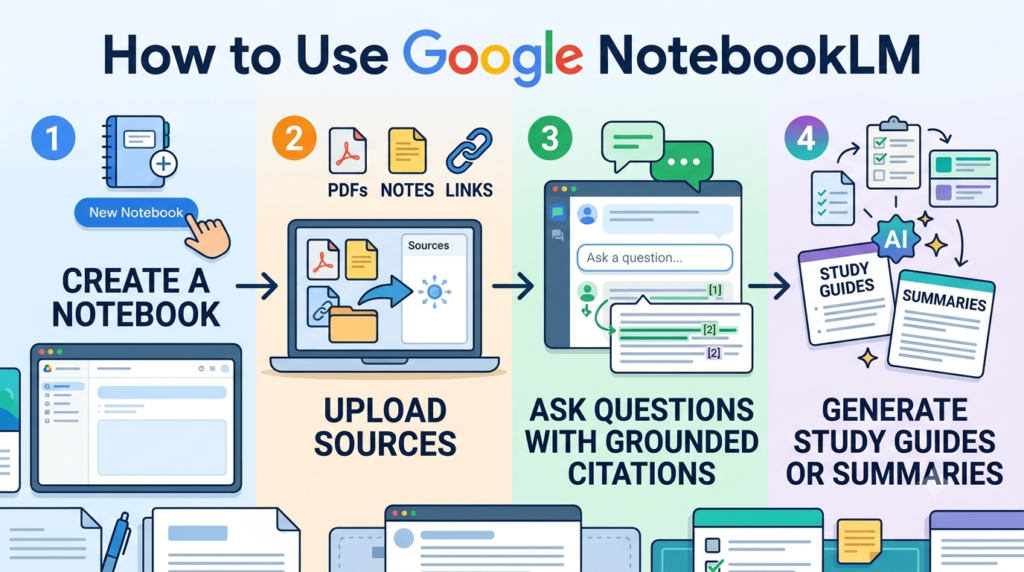
The following tutorial explains the desktop browser workflow, which is a convenient starting point for beginners.
Step 1: Visit the Official Google NotebookLM Website
Open your preferred web browser and visit:
https://notebooklm.google.com/
Sign in using your Google account.
You can generally use a personal Google account or an eligible Google Workspace account, subject to regional availability, age requirements, and administrator settings.
There is no need to install desktop software to begin using the browser version.
If you are using NotebookLM for the first time, review the applicable terms and privacy information before uploading documents.
Step 2: Create Your First Notebook
A notebook acts as an independent workspace for a particular research project.
After signing in:
- Locate the Create New Notebook option.
- Create a notebook.
- Assign a meaningful project name.
- Open the source upload option.
- Prepare the documents you want to analyse.
For example, students preparing for examinations could create notebooks named JEE Physics Preparation, CUET English Revision, Organic Chemistry Notes, or Mathematics Formula Revision.
Similarly, businesses can create notebooks for market research, product documentation, customer feedback, and marketing strategies.
Keeping different projects in separate notebooks helps reduce irrelevant information and makes research easier to manage.
Step 3: Add Information Sources
The third step involves adding the information you want the AI assistant to analyse.
NotebookLM supports various document and media formats.
|
Supported Source |
Practical Example |
|
|
Research papers and textbooks |
|
Google Docs |
Meeting notes and written reports |
|
Google Slides |
Classroom presentations |
|
Google Sheets |
Structured business information |
|
Website URLs |
Articles and online documentation |
|
YouTube URLs |
Public educational videos |
|
Audio Files |
Recorded lectures and interviews |
|
Microsoft Word |
Business documents |
|
PowerPoint |
Existing presentations |
|
CSV |
Structured datasets |
|
Images |
Charts and visual materials |
|
EPUB |
Digital books |
|
Copied Text |
Notes and reference material |
Some formats have additional restrictions. Google documents a maximum of 500,000 words per source or 200 MB for uploaded files.
Gemini Notebook Help
Start with three to five reliable sources instead of uploading every available document.
A carefully selected collection of information often produces more focused research results than a large collection of unrelated files.
Step 4: Understand the NotebookLM Interface
The desktop interface generally organises the workspace into three main sections.
Simplified interface illustration, not an exact application screenshot.
The Sources section contains uploaded research materials. The Chat section enables conversations about those materials, while Studio provides tools for generating additional research and learning outputs.
Understanding the purpose of each section helps beginners work more efficiently.
Step 5: Generate a Summary of Your Documents
Once your sources are ready, you can begin interacting with their content.
Enter a prompt such as:
Document summarisation prompt
Summarise the uploaded documents in simple English. Identify the ten most important concepts, explain their significance, and provide supporting citations from the sources. Highlight any information that requires further verification.
Copy prompt
NotebookLM will attempt to generate a structured response based on the available information.
Read the summary and follow the citations to confirm that important statements accurately represent the original documents.
Step 6: Ask Questions About Your Sources
One of the most useful features of NotebookLM is its ability to answer questions about specific research materials.
For example, if you upload a textbook about artificial intelligence, you could ask:
- What is the difference between supervised and unsupervised learning?
- Explain neural networks using beginner-friendly examples.
- Identify the most important definitions from the uploaded chapters.
- Compare the advantages and limitations discussed by different authors.
- Which questions cannot be answered using the available information?
Specific questions generally produce more useful responses than broad instructions.
Instead of asking NotebookLM to explain everything, focus on individual concepts, sections, arguments, or findings.
Step 7: Verify Information Using Source Citations
Source citations help users understand where supporting information originates.
When you receive an AI-generated response, inspect the referenced portions of the original documents.
This is particularly important when analysing academic research, preparing professional reports, or writing factual articles.
A citation does not automatically prove that a generated interpretation is correct. Check whether the original author actually supports the claim and whether relevant context has been omitted.
How to Create Audio Overviews in Google NotebookLM
Audio Overview transforms written information into an AI-generated spoken discussion.
This can be useful for students who prefer listening to educational material while revising, travelling, or completing everyday activities.
Google has introduced several Audio Overview formats for different learning needs.
blog.google
|
Audio Format |
Best Use |
|
Deep Dive |
Detailed exploration of a subject |
|
Brief |
Short introduction or revision |
|
Critique |
Feedback on written material |
|
Debate |
Exploring contrasting perspectives |
To create an Audio Overview, open your notebook, select the relevant sources, locate Audio Overview in Studio, customise your instructions if the option is available, and generate the audio.
Example Audio Overview Prompt
Create an engaging audio discussion for beginners preparing for the CUET examination. Focus on the important concepts from the uploaded study materials. Explain difficult terminology using practical examples and conclude with a short revision summary.
Copy prompt
Audio Overviews are generated by artificial intelligence and can contain pronunciation errors or inaccurate explanations. Review important information before sharing generated audio publicly.
How to Create Video Overviews Using NotebookLM
Video Overviews combine narrated explanations with visual elements to help users understand source material.
They can be particularly useful for complex subjects that benefit from visual explanations, such as scientific processes, business strategies, historical developments, and technical concepts.
Open Studio, select Video Overview, choose the available customisation preferences, describe your intended audience, and generate the video.
An example instruction would be to explain the architecture of artificial intelligence using beginner-friendly language, diagrams, and practical examples.
Businesses and educators should verify the accuracy of generated visuals and narration before using them as official training materials.
Some advanced video-generation capabilities require eligible subscription plans.
How to Create Mind Maps in NotebookLM
Mind maps provide visual representations of relationships between concepts.
For example, a notebook containing digital marketing resources could generate a structure connecting SEO, social media marketing, content marketing, paid advertising, and analytics.
Illustrative example of a digital marketing mind map.
To generate a mind map, add relevant sources to your notebook and select the Mind Map feature.
Use the resulting visual structure to understand how different subjects relate to one another.
Mind maps are particularly helpful during brainstorming, examination revision, content planning, and project development.
How to Generate Flashcards and Quizzes
NotebookLM can turn research and educational materials into interactive learning exercises.
Flashcards can support active recall by encouraging learners to remember information before reviewing an answer.
Quizzes can help identify areas requiring additional revision.
For example, a student learning computer science could generate flashcards covering machine learning algorithms, programming terminology, and database concepts.
Example Quiz Prompt
Create 30 multiple-choice questions using the uploaded study material. Include beginner, intermediate and advanced questions. Provide four options for each question, identify the correct answer and explain it using source citations.
Copy prompt
You can request this format through Chat or customise a Studio quiz using the available options.
Practise answering questions without reviewing your notes first. Afterwards, revisit the concepts associated with incorrect answers.
How to Create Presentations, Reports and Infographics
NotebookLM can transform research materials into professional communication formats.
Presentations are useful for classroom lectures, business meetings, project proposals, and educational workshops. Reports help organise research findings, while infographics communicate important concepts visually.
Google also documents support for exporting generated presentations in PowerPoint and PDF formats, alongside report and structured data export options.
To create these materials, select the appropriate Studio feature and provide instructions describing the content, audience, length, and intended use.
For example, you could request a beginner-friendly presentation explaining artificial intelligence or a professional briefing document summarising customer feedback.
Always review AI-generated content before presenting it to clients, students, or management.
Google NotebookLM: Free vs Paid Plans
NotebookLM offers free access to core research features, with higher usage allowances available through qualifying subscriptions.
The following selected limits are documented by Google for Standard, Plus, and Pro access following its September 2026 changes.
|
Feature |
Standard (Free) |
Plus |
Pro |
|
Notebooks per user |
100 |
200 |
500 |
|
Sources per notebook |
50 |
100 |
300 |
|
Daily chat queries |
50 |
200 |
500 |
|
Daily audio overviews |
3 |
6 |
20 |
|
Daily video overviews |
3 |
6 |
20 |
|
Daily reports |
10 |
20 |
100 |
|
Daily flashcard generations |
10 |
20 |
100 |
|
Daily quiz generations |
10 |
20 |
100 |
|
Daily mind maps |
10 |
20 |
100 |
|
Deep Research |
10/month |
3/day |
20/day |
These allowances are subject to change. Google also provides higher Ultra and enterprise tiers. Check your account and the official Google Help Center before purchasing a subscription.
Gemini Notebook Help
For most beginners, starting with the free version is a practical way to evaluate whether the tool meets their requirements.
10 Best Google NotebookLM Prompts for Beginners
The effectiveness of an AI research assistant depends partly on the quality of the instructions provided.
The following prompts can help users obtain more structured and useful research results.
01 : Research paper analysis
Analyse the uploaded research papers. Identify their objectives, methodologies, major findings, limitations and recommendations. Compare conflicting conclusions and cite the relevant sources.
02 : Examination preparation
Act as an experienced teacher. Create a seven-day revision plan using only the uploaded syllabus and study materials. Include important concepts, practice questions and daily revision goals.
SEO content research
Analyse the uploaded articles and official documentation. Identify important subtopics, unanswered questions, content gaps, semantic keyword ideas and opportunities to create a comprehensive informational article. Do not invent search volumes.
04 Business report analysis
Analyse the uploaded business reports. Identify key findings, operational challenges, growth opportunities and measurable recommendations. Distinguish facts from assumptions.
05
PDF summarisation
Summarise the uploaded PDF chapter by chapter. Highlight important definitions, numerical findings and conclusions. Provide citations and flag ambiguous statements.
06
YouTube lecture analysis
Analyse the information available from the uploaded educational video source. Extract key learning points, explain complex concepts and prepare revision notes.
07
Competitor research
Compare the uploaded competitor materials based on features, positioning, pricing and target audiences. Present the findings in a table and identify missing information.
08
Fact-checking
Evaluate the major claims in the uploaded documents. Identify which claims are supported, contradicted or not established by the other sources.
09
Interview preparation
Generate 25 interview questions using the uploaded job description and professional learning materials. Include practical scenarios and model answers.
10
Beginner-friendly explanation
Explain the main concepts in the uploaded sources to a complete beginner. Use simple analogies, practical examples and short definitions. Cite the supporting information.
For the best results, customise each prompt according to your subject, intended audience, and desired output format.
Practical Example: How Students Can Use NotebookLM for JEE and CUET Preparation
NotebookLM can help students organise examination materials and develop structured revision routines.
Consider a student preparing for JEE Main Physics.
The student creates a dedicated notebook and adds authorised textbooks, classroom notes, the official syllabus, and relevant previous-year examination materials.
After organising the information, the student uses NotebookLM to identify important topics, prepare formula sheets, generate practice questions, and create Audio Overviews.
|
Preparation Activity |
NotebookLM Application |
|
Syllabus understanding |
Summarise topics and chapters |
|
Concept learning |
Explain difficult theories |
|
Formula revision |
Create formula reference sheets |
|
Daily practice |
Generate practice questions |
|
Active recall |
Create flashcards |
|
Weekly revision |
Generate mind maps |
|
Self-assessment |
Identify weak areas through quizzes |
Students should independently solve numerical problems and verify generated answers against reliable textbooks.
NotebookLM should supplement traditional learning rather than replace it.
How to Use Google NotebookLM for SEO and Content Marketing
SEO professionals frequently need to analyse competitor articles, technical documentation, industry reports, search guidelines, and customer research.
NotebookLM can help organise these materials into a focused research workspace.
For instance, a content marketing team could create a notebook dedicated to technical SEO and add official Google Search Central documentation, internal website audit reports, and relevant industry research.
The team could then identify content opportunities, prepare article outlines, extract technical recommendations, and develop training materials.
|
SEO Activity |
Practical NotebookLM Use |
|
Content Gap Analysis |
Identify missing subtopics in supplied content |
|
Keyword Research |
Analyse existing keyword datasets |
|
Search Intent |
Review the purpose of supplied articles |
|
Competitor Analysis |
Compare competitor content |
|
Content Briefs |
Generate structured article outlines |
|
Internal Linking |
Identify relationships between documents |
|
Technical SEO |
Summarise crawl reports and guidelines |
|
SEO Reporting |
Explain supplied performance metrics |
|
Topical Authority |
Develop related content themes |
NotebookLM does not independently guarantee access to accurate keyword search volumes, keyword difficulty scores, domain authority metrics, or live ranking data.
SEO professionals should obtain these metrics from trusted analytics and keyword research platforms.
AI-generated research should support original content creation rather than encourage copying or rewriting competitors’ work.
Google NotebookLM vs ChatGPT vs Perplexity AI
Different AI tools are designed for different information-processing workflows.
|
Feature |
NotebookLM |
ChatGPT |
Perplexity AI |
|
Primary Purpose |
Source-focused research |
General AI assistance |
Online research |
|
Document Analysis |
Strong focus |
Supported |
Supported |
|
Source-Based Questions |
Core functionality |
Supported |
Supported |
|
Web Research |
Source discovery features |
Available in supported modes |
Core functionality |
|
Podcast-Style Study Material |
Dedicated feature |
Feature-dependent |
Feature-dependent |
|
Study Guides |
Dedicated reports |
Prompt-based |
Prompt-based |
|
Flashcards and Quizzes |
Dedicated learning tools |
Prompt-based or feature-dependent |
Prompt-based |
|
Programming Assistance |
Possible with sources |
Strong general use |
Supported |
|
Content Creation |
Research-focused |
Broad creative workflows |
Research-focused |
|
Ideal Audience |
Students and researchers |
General and professional users |
Online researchers |
ChatGPT is useful for broad creative, analytical, and technical tasks, while Perplexity AI focuses strongly on online information discovery.
NotebookLM is particularly suitable when users want to work repeatedly with a defined collection of research materials.
These tools can complement one another rather than compete for every task.
Advantages and Disadvantages of Google NotebookLM
|
Advantages |
Disadvantages |
|
Beginner-friendly research workflow |
Generated answers can contain errors |
|
Multiple supported source formats |
Source quality affects output quality |
|
Source-focused responses |
Internet access is generally required |
|
Audio and visual learning materials |
Free accounts have usage limits |
|
Interactive revision tools |
Some advanced features require subscriptions |
|
Supports educational and business research |
Cannot replace professional judgement |
|
Helps organise complex information |
Imported sources may require updates |
|
Reduces repetitive document analysis |
Sensitive documents require careful handling |
NotebookLM is most effective when users understand both its capabilities and limitations.
Common Google NotebookLM Problems and Solutions
|
Problem |
Possible Reason |
Recommended Solution |
|
PDF not uploading |
Unsupported, oversized or restricted file |
Check file size, format and permissions |
|
Website not importing |
Restricted or inaccessible page |
Use an accessible authorised source |
|
YouTube source not working |
Unsupported video or unavailable transcript |
Try another eligible video |
|
Inaccurate answers |
Incomplete or conflicting sources |
Add reliable sources and refine prompts |
|
Audio Overview unavailable |
Quota or account restrictions |
Check account limits |
|
Poor-quality summaries |
Broad or unclear instructions |
Specify the desired topics and structure |
|
Missing citations |
Insufficient supporting information |
Ask for evidence and check source coverage |
|
Outdated information |
Previously imported source |
Refresh or replace the source |
|
Feature missing on mobile |
Platform or account differences |
Try the desktop browser |
Is Google NotebookLM Safe to Use?
Information security is important when using AI-powered research tools.
Before uploading confidential business documents, personal records, unpublished research, or customer information, users should review Google’s applicable terms, privacy policies, and organisational requirements.
Avoid uploading passwords, financial credentials, identity documents, confidential customer records, or information you are not authorised to share.
Data-handling protections may differ between personal and qualifying organisational accounts. Users should also understand the potential implications of voluntarily submitting product feedback.
For sensitive professional research, obtain approval from your organisation before uploading restricted materials.
Best Practices for Using Google NotebookLM Effectively
Creating high-quality notebooks requires more than simply uploading documents.
Select authoritative sources, organise notebooks by subject, write detailed prompts, verify citations, and review generated outputs before sharing them.
Separate established facts from assumptions. When documents contain conflicting information, ask NotebookLM to explain those differences rather than automatically choosing one conclusion.
Update your sources regularly, especially when working with rapidly changing subjects such as artificial intelligence, digital marketing, and software development.
Finally, use different output formats according to your learning goals. Summaries can provide an initial understanding, mind maps can reveal relationships, and quizzes can help assess knowledge retention.
”FAQs”
1. What is Google NotebookLM used for?
Google NotebookLM is used for document analysis, AI-assisted research, studying, information summarisation, audio discussions, and creating learning materials from selected sources.
2. Is Google NotebookLM free to use?
Yes. Eligible users can access its standard features for free. Paid subscriptions offer higher usage allowances and additional capabilities.
3. How do I use Google NotebookLM for the first time?
Visit the official website, sign in with your Google account, create a notebook, upload relevant sources, and begin asking questions about your materials.
4. Can Google NotebookLM summarise PDF files?
Yes. NotebookLM can analyse supported PDF documents and generate summaries, explanations, and responses based on accessible document content.
5. Can NotebookLM generate podcasts?
NotebookLM can create podcast-style Audio Overviews that summarise, discuss, or critique supplied information using AI-generated voices.
6. Is NotebookLM useful for competitive examinations?
Yes. It can help students preparing for JEE, CUET, NEET, UPSC, and other examinations organise notes, revise concepts, and generate practice exercises.
7. Can Google NotebookLM create PowerPoint presentations?
NotebookLM provides a slide deck generation feature, and Google documents PowerPoint export support. Availability may depend on the user's account.
8. Can NotebookLM make mistakes?
Yes. Like other generative AI applications, NotebookLM can produce incorrect interpretations, unsupported conclusions, and inaccurate summaries.
9. Can NotebookLM analyse YouTube videos?
Yes. It supports eligible public YouTube video URLs, generally using available textual transcripts rather than independently understanding every visual element.
10. Can Google NotebookLM work offline?
Its core AI processing generally requires internet access. Previously downloaded materials may be accessible offline through compatible applications.


