
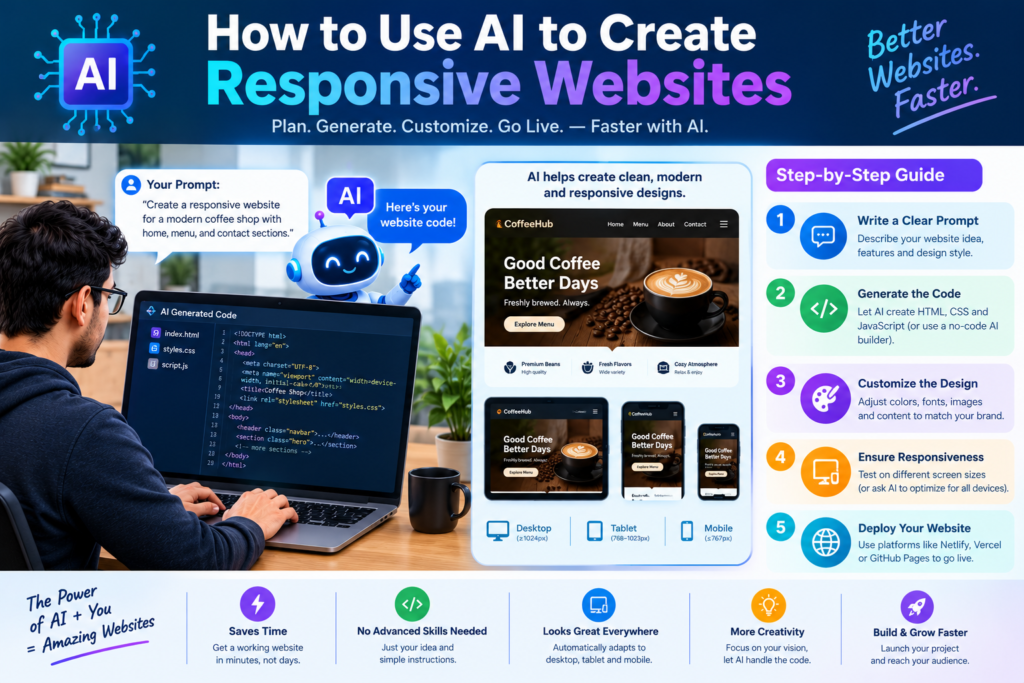
How to Use AI to Create Responsive Websites with HTML, CSS, and JavaScript: 7 Powerful Steps
Building a website used to take many hours of planning, coding, testing, and fixing errors. Today, artificial intelligence can help developers complete many of these tasks faster. An AI website builder can suggest layouts, generate code, improve designs, and help beginners understand modern web technologies.
However, AI doesn’t replace the need for good planning or careful testing. A website still needs clean code, useful content, fast loading times, and a smooth user experience.
In this guide, you’ll learn how to use AI to create responsive websites with HTML, CSS, and JavaScript. You’ll also discover useful tools, practical coding examples, and ways to build a mobile-friendly website that works across different screen sizes.
1. How to Use AI to Create Responsive Websites, Understanding AI Web Development
AI web development uses artificial intelligence to support the website development process. These tools can turn written instructions into code, suggest design improvements, identify coding errors, and help developers solve technical problems.
For example, you could ask an AI tool to create a landing page for a software company. You might request a navigation bar, a headline, a service section, customer testimonials, and a contact form. The AI can generate an initial HTML structure, CSS styles, and JavaScript interactions. You can then review the result, make changes, and test it in a browser.
This approach is called AI-assisted development because a human still guides the project and checks the final result.
How AI Supports Front-End Development
Front-end development focuses on the parts of a website that users see and interact with. It mainly uses three technologies.
|
Technology |
Main Purpose |
Example |
|
HTML |
Defines page structure |
Headings, images, forms, and links |
|
CSS |
Controls appearance and layout |
Colors, spacing, responsive grids |
|
JavaScript |
Adds behavior and interaction |
Menus, filters, and form validation |
AI can support all three technologies. For HTML, it can generate page sections and organize content. For CSS, it can suggest responsive layouts and consistent styling. For JavaScript development, it can create interactive features and help explain errors.
Key Benefits of AI-Assisted Development
- Faster coding: Generate an initial version of common website components.
- Better learning: Understand unfamiliar code through simple explanations.
- Rapid prototyping: Test different layouts before committing to a final design.
- Easier debugging: Find possible causes of errors and explore solutions.
- Consistent styling: Create reusable design patterns for buttons, cards, and forms.
- Improved workflow: Reduce repetitive work during development.
Still, AI-generated code isn’t always correct. It may contain security problems, outdated methods, or features that don’t work as expected. The best approach is to treat AI as a development assistant, not as an automatic replacement for technical knowledge.
2. Choosing the Right AI Web Design Tools
The right tools can make your web development workflow more efficient. However, you don’t need every available tool to build a website.
Start with your goals. If you want to launch a simple business website, a visual AI website builder may be enough. If you want complete control over HTML, CSS, and JavaScript, an AI coding assistant may be more suitable.
AI Website Builders vs. AI Coding Assistants
AI website builders often create complete website layouts from text instructions. Some provide visual editors, hosting, and publishing features. AI coding assistants focus more on writing, explaining, and improving code. They are useful when you want to control the website’s structure and behavior.
|
Tool Category |
Best For |
Main Advantage |
Possible Limitation |
|
AI website builders |
Business websites and landing pages |
Quick visual results |
Limited control in some platforms |
|
AI coding assistants |
Developers and learners |
Greater code control |
Requires testing and coding knowledge |
|
AI design tools |
Layouts and interface concepts |
Faster design exploration |
Designs may need manual implementation |
|
Browser developer tools |
Testing and debugging |
Real-world inspection |
Requires technical understanding |
|
Automated testing tools |
Quality checks |
Repeatable tests |
Cannot judge every design issue |
Examples of tools and platforms worth exploring include:
- GitHub Copilot: Helps developers write and understand code.
- Cursor: Provides an AI-assisted coding environment.
- Wix: Offers visual website creation tools with AI features.
- Webflow: Supports visual website design and responsive layouts.
- Google Chrome DevTools: Helps inspect layouts, debug code, and test screen sizes.
Features and pricing can change, so review each platform before selecting it.
How to Select the Best Tool
Before choosing an AI tool, consider these questions:
- Can you export or directly edit the generated code?
- Does it support mobile-friendly layouts?
- Can you control the website’s structure and styling?
- Does it fit your budget?
- Can you test the website before publishing?
- Does it support your preferred development framework?
For beginners, a simple AI coding assistant paired with a browser may be enough to learn HTML, CSS, and JavaScript.
For larger projects, choose tools that support version control, reusable components, and structured testing.
3. Planning a Responsive Website Before Coding
A successful website starts with a clear plan. AI can generate code quickly, but it needs accurate instructions to produce useful results.
Before opening an AI tool, decide what the website should do, who will use it, and what information it needs to display.
Define the Website’s Goals
Start by writing a short project description.
For example:
“Create a responsive website for a digital marketing agency. Include a navigation bar, hero section, services, customer testimonials, pricing information, and a contact form. Use a clean design and make the website easy to navigate on mobile devices.”
This prompt gives the AI a clear direction.
Next, identify the main pages or sections. A small business website may need a homepage, services page, about page, and contact page. An online learning platform may need course listings, instructor profiles, and registration forms.
Create a Simple Website Structure
A typical landing page might contain these sections:
- Header and navigation
- Hero section with a headline and call-to-action button
- Services or product features
- Benefits and supporting information
- Testimonials or trust indicators
- Frequently asked questions
- Contact section
- Footer with useful links
This structure helps users find important information without unnecessary scrolling or confusion.
Write a Better AI Prompt
Good instructions lead to more useful code. Instead of saying, “Make a website,” provide specific requirements.
A useful prompt should include:
- Website purpose and target audience
- Required sections and features
- Preferred colors and visual style
- Mobile and desktop layout requirements
- Accessibility expectations
- Performance goals
- Required technologies
For example:
“Build a responsive landing page using semantic HTML5, modern CSS, and vanilla JavaScript. Use CSS Grid for the feature cards, Flexbox for the navigation, and a mobile-first layout. Add a keyboard-accessible menu, clear focus states, and a contact form with basic validation. Keep the code organized into separate HTML, CSS, and JavaScript files.”
You can then ask the AI to generate each part separately.
This step-by-step approach makes it easier to review the code and correct mistakes before they spread across the project.
4. Generating HTML with AI
HTML provides the foundation of every web page. It defines the content and explains how different sections relate to one another.
AI tools can generate HTML quickly, but the result should use meaningful elements and a clear structure.
Use Semantic HTML Elements
Semantic HTML describes the purpose of each section. It helps browsers, search engines, and assistive technologies understand the page.
Common semantic elements include:
- <header> for introductory content
- <nav> for navigation links
- <main> for the main page content
- <section> for related content
- <article> for independent content
- <footer> for closing information
Ask your AI assistant to use semantic HTML rather than creating every section with generic <div> elements.
Example: AI-Generated HTML Structure
The following example shows a simple landing page structure:
<!DOCTYPE html>
<html lang=”en”>
<head>
<meta charset=”UTF-8″>
<meta name=”viewport”
content=”width=device-width, initial-scale=1.0″>
<title>Creative Web Studio</title>
<meta name=”description”
content=”Explore web design and development services.”>
<link rel=”stylesheet” href=”styles.css”>
<script src=”script.js” defer></script>
</head>
<body>
<header>
<nav aria-label=”Main navigation”>
<a href=”/” class=”logo”>Creative Studio</a>
<button id=”menu-toggle”
aria-expanded=”false”
aria-controls=”nav-links”>
Menu
</button>
<ul id=”nav-links”>
<li><a href=”#services”>Services</a></li>
<li><a href=”#about”>About</a></li>
<li><a href=”#contact”>Contact</a></li>
</ul>
</nav>
</header>
<main>
<section class=”hero”>
<h1>Build a Better Digital Experience</h1>
<p>We create useful, accessible, responsive websites.</p>
<a href=”#contact” class=”button”>Get Started</a>
</section>
<section id=”services”>
<h2>Our Services</h2>
<p>Explore our web design and development solutions.</p>
</section>
<section id=”about”>
<h2>About Our Studio</h2>
<p>We help businesses build a strong online presence.</p>
</section>
<section id=”contact”>
<h2>Contact Us</h2>
<p>Get in touch to discuss your project.</p>
</section>
</main>
<footer>
<p>© 2026 Creative Studio</p>
</footer>
</body>
</html>
This structure includes a viewport setting, semantic sections, a page title, and a meta description.
The viewport setting is especially important for mobile responsiveness. Without it, mobile browsers may display the page as though it were designed for a wider screen.
Review the Generated HTML
After generating the code, check that:
- The page has one clear main heading.
- Heading levels follow a logical order.
- Links have meaningful text.
- Images include suitable alternative text.
- Buttons perform clear actions.
- Forms have associated labels.
- Every referenced file exists.
AI can speed up HTML coding, but reviewing the structure remains essential for accessible and maintainable websites.
5. Creating Responsive CSS with AI
CSS controls how a website looks on different screens. Responsive website design ensures that content adapts to mobile phones, tablets, laptops, and desktop monitors.
A responsive layout shouldn’t simply shrink the desktop design. It should adjust spacing, navigation, typography, and content placement to suit the available space.
Use a Mobile-First Approach
Mobile-first development means starting with styles for smaller screens and adding enhancements for wider displays.
This approach encourages developers to focus on essential content first.
For example, a service section may show one card per row on a phone, two cards on a tablet, and three cards on a desktop.
AI can generate these styles from a clear prompt, but you should still test them at different viewport widths.
Example: Responsive CSS
* {
box-sizing: border-box;
}
html {
scroll-behavior: smooth;
}
body {
margin: 0;
font-family: Arial, sans-serif;
line-height: 1.6;
color: #222;
}
header,
footer {
padding: 1rem 5%;
}
nav {
display: flex;
align-items: center;
justify-content: space-between;
gap: 1rem;
}
#nav-links {
display: flex;
gap: 1.25rem;
list-style: none;
padding: 0;
}
.hero {
padding: 4rem 5%;
text-align: center;
}
.hero h1 {
font-size: clamp(2rem, 5vw, 3.5rem);
line-height: 1.15;
}
.hero p {
max-width: 42rem;
margin: 1rem auto;
}
.button {
display: inline-block;
padding: 0.8rem 1.2rem;
text-decoration: none;
border-radius: 0.4rem;
background: #174ea6;
color: white;
}
section {
padding: 3rem 5%;
}
@media (max-width: 600px) {
nav {
align-items: flex-start;
flex-wrap: wrap;
}
#nav-links {
flex-direction: column;
gap: 0.5rem;
width: 100%;
}
.hero {
padding: 2.5rem 1rem;
}
section {
padding: 2rem 1rem;
}
}
This example demonstrates flexible spacing, scalable headings, and a media query for narrow screens.
The navigation button still needs JavaScript to control the menu, and the menu should be hidden appropriately in the initial mobile state. Those details should be added and tested as part of the full implementation.
Use Flexbox and CSS Grid
Flexbox works well when arranging items in a single direction. It is useful for navigation bars, button groups, and aligned content.
CSS Grid works well for two-dimensional layouts. It is useful for image galleries, product cards, and service sections.
For example, you can ask an AI assistant:
“Create a responsive three-column card layout using CSS Grid. Let the cards automatically move into fewer columns when the screen becomes narrower. Keep equal spacing and prevent horizontal overflow.”
The AI might suggest this CSS:
.service-grid {
display: grid;
grid-template-columns:
repeat(auto-fit, minmax(min(100%, 15rem), 1fr));
gap: 1.5rem;
}
.service-card {
padding: 1.5rem;
border: 1px solid #ddd;
border-radius: 0.75rem;
}
This layout adapts to available space without requiring a separate media query for every screen size.
Avoid Common CSS Problems
AI-generated CSS may include fixed widths, excessive margins, or conflicting rules.
To prevent these issues:
- Prefer flexible widths over fixed page widths.
- Use max-width to control content length.
- Keep images within their containers.
- Use consistent spacing values.
- Test long headings and buttons.
- Remove duplicate styles.
- Check for horizontal scrolling.
Responsive frameworks such as Bootstrap can also help, but they aren’t required. Modern CSS provides many useful tools for building responsive layouts without a large framework.
6. Adding JavaScript with AI
JavaScript makes websites interactive. It can control menus, validate forms, update content, filter results, and respond to user actions.
AI-assisted JavaScript development can help beginners understand event listeners and common programming patterns. It can also help experienced developers create and test small features more quickly.
However, interactive code should always be reviewed for reliability, accessibility, and security.
Example: Creating a Mobile Navigation Menu
A mobile navigation menu should open and close when the user activates a button.
First, add a class to hide the menu when it’s closed:
#nav-links.is-hidden {
display: none;
}
#menu-toggle:focus-visible {
outline: 3px solid #174ea6;
outline-offset: 3px;
}
Next, use JavaScript to control the menu:
const menuButton = document.querySelector(“#menu-toggle”);
const navigation = document.querySelector(“#nav-links”);
if (menuButton && navigation) {
menuButton.addEventListener(“click”, () => {
const isExpanded =
menuButton.getAttribute(“aria-expanded”) === “true”;
menuButton.setAttribute(
“aria-expanded”,
String(!isExpanded)
);
navigation.classList.toggle(“is-hidden”, isExpanded);
});
}
To use this example, initialize the navigation with the is-hidden class on mobile and remove that class when the desktop layout should display the links. A CSS media query can handle the desktop state.
This is a useful example of combining HTML, CSS, and JavaScript into one responsive feature.
Add Form Validation
AI can also generate basic form validation.
For example, a contact form might require a name, a valid email address, and a message. JavaScript can check whether these fields contain suitable values before submitting the form.
However, client-side validation isn’t enough for sensitive or important data. The server must validate incoming information too.
Never rely on AI-generated code alone for authentication, payment handling, or access control. These areas need careful security review and trusted implementation practices.
Ask AI to Explain the Code
One of the best ways to learn is to ask follow-up questions.
Try prompts such as:
- “Explain this JavaScript code in simple language.”
- “What happens if the navigation element doesn’t exist?”
- “How can I make this interaction work with a keyboard?”
- “Write tests for the main behavior.”
- “Identify possible bugs and suggest a simpler solution.”
This approach helps you learn the underlying concepts rather than copying code without understanding it.
7. Testing and Optimizing the Website
A website isn’t finished when the code runs. It must also load quickly, work across devices, remain accessible, and provide a smooth user experience.
Website optimization should be part of the development process from the beginning.
Test Different Screen Sizes
Open the website in a browser and inspect it at several viewport widths.
Check at least:
- A narrow mobile screen
- A larger mobile screen
- A tablet-sized screen
- A standard laptop
- A wide desktop monitor
Look for clipped text, overlapping buttons, oversized images, broken navigation, and unwanted horizontal scrolling.
Chrome DevTools can simulate different screen sizes. However, testing on real devices is also useful because touch interactions and browser behavior can vary.
Improve Website Performance
Large images, unnecessary JavaScript, and excessive third-party scripts can slow down a website.
Ask your AI assistant to review performance problems and suggest improvements. Then verify the recommendations using browser tools and real measurements.
Useful practices include:
- Compressing images and choosing appropriate formats.
- Using responsive image sources where needed.
- Loading below-the-fold images lazily.
- Removing unused CSS and JavaScript.
- Reducing unnecessary network requests.
- Avoiding heavy animations on low-powered devices.
- Using caching and efficient hosting where appropriate.
Google’s PageSpeed Insights can help assess performance and identify opportunities for improvement.
Pay attention to Core Web Vitals, including Largest Contentful Paint (LCP), Interaction to Next Paint (INP), and Cumulative Layout Shift (CLS). These metrics help assess loading speed, responsiveness, and visual stability.
Check Accessibility
Responsive web development should support people with different abilities and ways of interacting with a website.
Use readable text, sufficient color contrast, visible keyboard focus, descriptive links, and labels for form fields.
Images that convey information should have useful alternative text. Decorative images should generally use empty alternative text so screen readers can skip them.
Use semantic HTML and test keyboard navigation. AI can help identify accessibility issues, but automated checks may miss problems that require human judgment.
The W3C Web Accessibility Initiative provides guidance on building more accessible websites.
Review Search Engine Optimization
Technical and on-page SEO also matter during website development.
Check that your website has:
- Descriptive page titles and meta descriptions.
- Clear headings and meaningful content.
- Crawlable internal links.
- Appropriate canonical URLs when needed.
- A sensible URL structure.
- Mobile-friendly layouts.
- Useful image alternative text.
- Fast-loading and stable pages.
AI can help draft titles, descriptions, and content structures. Still, each page should provide original value and accurately represent its content.
Test Before Launch
Use this final checklist before publishing:
- All navigation links work.
- The layout adapts to different screens.
- Forms show clear validation messages.
- No important content is hidden.
- Images load correctly.
- Keyboard navigation works.
- The website has no major console errors.
- Performance issues have been reviewed.
- Page titles and descriptions are accurate.
- Any required server-side validation is in place.
Testing helps turn an AI-generated prototype into a website that people can use with confidence.
Common Mistakes to Avoid When Using AI for Web Design
AI can accelerate website development, but some mistakes can reduce the quality of the final result.
1. Using Vague Prompts
A short prompt may produce a generic layout that doesn’t match your requirements. Better approach: Explain the target audience, page sections, visual style, and expected behavior.
2. Copying Code Without Reviewing It
Generated code may contain unnecessary styles, broken interactions, or insecure patterns. Better approach: Review each component and test its behavior before adding more features.
3. Ignoring Mobile Users
A website that looks good on a desktop may fail on a small screen. Better approach: Use mobile-first CSS, flexible layouts, and regular device testing.
4. Adding Too Many Features
AI can generate large amounts of code quickly. That doesn’t mean every suggested feature is useful.
Better approach: Build the essential features first, then add improvements based on user needs.
5. Neglecting Accessibility
A visually attractive interface can still be difficult to use with a keyboard or screen reader. Better approach: Include accessibility requirements in the original prompt and test them during development.
6. Trusting AI With Security Decisions
Generated code may not handle user input, authentication, or permissions safely.
Better approach: Apply established security practices, validate data on the server, and obtain qualified review for sensitive features.
AI has made responsive website development more accessible to beginners and experienced developers alike. With an AI website builder or coding assistant, you can generate HTML structures, create flexible CSS layouts, add JavaScript interactions, and improve your development workflow. The most effective approach is to divide the project into clear steps: plan the website, generate the code, review the design, add interactions, and test the final result.
Remember that AI-generated code is a starting point, not a guarantee of quality. You still need to check accessibility, mobile responsiveness, performance, security, and SEO. Start with a small project, experiment with different AI web design tools, and improve your skills with every iteration.
Know More:
”FAQs”
1. Can AI create a complete responsive website?
Yes. AI website builders and coding assistants can generate layouts, HTML, CSS, and JavaScript for many website types. However, you should review the code, test the layout, and verify security and accessibility before launch.
2. How do I create responsive websites using AI?
Start by defining your website's purpose and required sections. Ask an AI tool to generate semantic HTML, mobile-first CSS, and JavaScript for the required interactions. Then test the result at different screen sizes and improve it based on actual performance.
3. Do I need coding knowledge to use an AI website builder?
Not always. Visual AI website builders can help beginners create websites with little coding. However, understanding basic HTML, CSS, and JavaScript makes it easier to customize designs, fix errors, and maintain a website over time.
4. Which AI tools are best for HTML, CSS, and JavaScript development?
The best option depends on your workflow. GitHub Copilot and Cursor are useful for AI-assisted coding, while Wix and Webflow offer visual website creation features. Compare their current capabilities, code control, pricing, and publishing options before choosing one.
5. Can AI make a website mobile-friendly automatically?
AI can generate responsive CSS, flexible layouts, and media queries. Still, it can't guarantee that every page will work well on every device. You must test the website for text overflow, navigation problems, touch usability, and loading performance.
6. Is AI-generated website code good for SEO?
It can be. AI can help create semantic HTML, descriptive titles, useful content structures, and mobile-friendly layouts. SEO results still depend on content quality, technical implementation, user experience, competition, and other ranking factors.
7. Is AI web development suitable for beginners?
Yes. AI can explain code, suggest fixes, and help beginners build small projects. Start with simple pages and learn how HTML, CSS, and JavaScript work together. Gradually move to forms, responsive navigation, and more advanced features.
8. Can AI replace front-end developers?
AI can automate some repetitive coding tasks, but front-end development involves more than generating code. Developers still need to understand user needs, make design decisions, review security, solve complex problems, and test the finished product.
9. How can I improve AI-generated website performance?
Start by measuring performance with tools such as PageSpeed Insights and Chrome DevTools. Optimize images, reduce unnecessary JavaScript, remove unused CSS, and avoid layout shifts. Measure the results after each major change.