
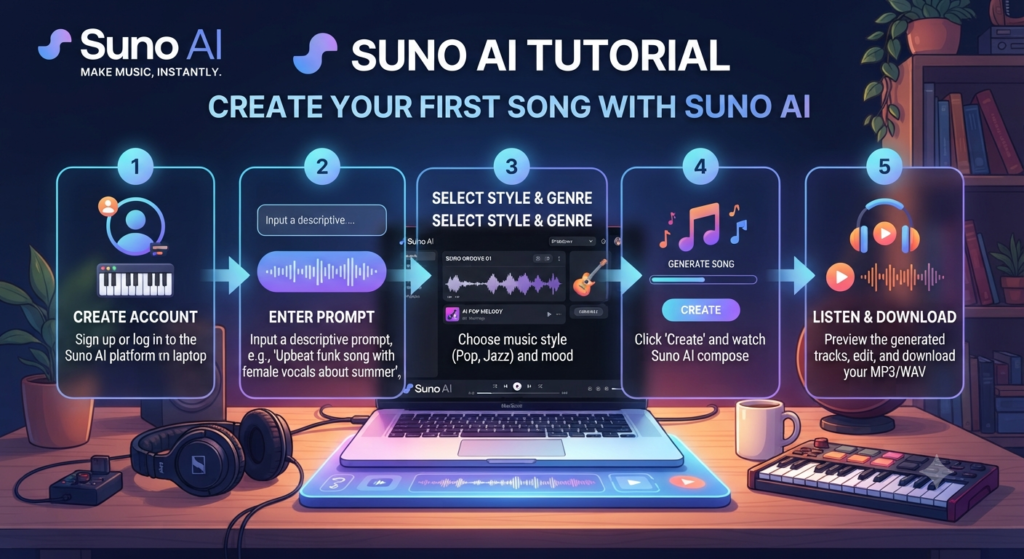
Suno AI Tutorial – How to Create Music and Songs Using AI
Music production no longer has to begin with an expensive studio or a collection of instruments. Suno is a generative music platform that can turn written descriptions into audio, including songs with vocals and instrumental pieces. It can help a beginner explore musical ideas, a video creator prototype a soundtrack, or a marketing team develop a concept for a campaign. However, the ability to generate a track is not the same as the right to publish it commercially. This tutorial explains both the creative workflow and the permissions you should check before releasing a song.
Know More: How to Use Gamma AI for Professional Presentations: 8 Powerful Steps
What is Suno AI and how does it work?
Suno generates music from instructions describing a desired sound. Rather than connecting individual notes on a piano roll, you can describe a mood, instruments, genre, vocal delivery and structure. The system interprets those directions and creates audio. The result is probabilistic: repeating the same request can produce substantially different music. Think of each generation as a draft rather than a finished commission. You may find a useful chorus in one version and a better arrangement in another. Listening critically and refining the brief are essential parts of the process. Suno is useful for experimentation, but it does not automatically guarantee originality, accurate pronunciation or studio-quality mixing.
Step 1: Set up your first project
Visit https://suno.com/ and sign in using an available account option. Open the Create workspace. Before generating anything, decide whether the project is private experimentation or intended for monetization. Review the current subscription conditions and download permissions, particularly if the track will appear in a client advertisement.
Create a short written brief containing the audience, intended platform, approximate duration and emotional goal. For example, a cooking tutorial may need a cheerful instrumental that does not compete with narration, while a travel montage may benefit from a slow build and a memorable melodic theme. Keep these notes in a project folder alongside your prompts.
Step 2: Generate a song in Simple mode
Start with a plain-language description of your song. Describe a single coherent musical direction instead of combining every genre you enjoy. A useful first prompt might request an uplifting acoustic pop song about starting a new chapter, with warm guitar, gentle percussion and a memorable chorus. Submit the request using Create and wait for the available results. Listen to each version from beginning to end, noting whether the opening, transitions and ending fit the brief.
Do not select a version solely because its first few seconds sound attractive. Save your favorite and record the prompt so you can reproduce the creative direction later. Simple mode is particularly useful when you have a concept but have not written lyrics.
Step 3: Use Custom mode for greater control
Open Custom in the creation workspace. Suno’s official instructions explain that you can supply your own lyrics and describe the musical style separately [1]. Write an original verse and chorus before generating. A structure such as an introductory verse, a short chorus, a second verse and a final chorus provides a clear starting point. You can use section labels to communicate your intended arrangement, though the output may not follow them exactly.
In the style field, describe the pace, instruments, atmosphere and vocal character. Choose a descriptive title. If advanced options are available, change one at a time so you can understand their influence. Avoid entering confidential client material or lyrics copied from an existing song.
Step 4: Create instrumental background music
A soundtrack for spoken content has different requirements from a standalone song. Use Custom mode and enable the instrumental option where available. Request a restrained arrangement with a gentle rhythm, sparse melodic activity and no vocals. Generate alternatives and test them under a sample of your voice recording. If the music makes words harder to understand, try a simpler arrangement or lower the music level in your video editor. Avoid abrupt changes during explanations. Use a short fade at the beginning and end when appropriate. For a podcast series, save the approved musical direction and use consistent versions across episodes so that the audience recognizes the sound identity.
Step 5: Refine the arrangement and sound
When a generation misses the target, identify the specific issue before changing your prompt. A track that feels too busy might need fewer instruments rather than a completely different genre. If the vocals sound rushed, simplify the lyrics or ask for more spacious phrasing. If the rhythm feels too aggressive, describe softer percussion and a more relaxed groove.
Some accounts offer editing tools and stem separation; check what your plan permits [2]. Work on copies of promising tracks rather than overwriting your best draft. Listen using headphones, laptop speakers and a phone to catch harsh sounds or unexpectedly quiet passages. Keep a simple log of the original prompt, revised prompt and chosen version.
Step 6: Download and prepare your audio
Once you select a track, check its available download options and the terms associated with your account. Keep the original audio file separately from the version you edit for a video. In an audio or video editor, trim unnecessary silence, adjust the volume and add fades. For a voiceover, listen to the music while the narration is playing rather than judging the two files in isolation. For a short social video, align the strongest musical moment with the visual reveal. A requested duration is a creative instruction, not a guarantee of an exact file length. Use editing software when a campaign requires an exact 15-second or 30-second deliverable. Export in the format required by your destination platform.
Practical example: A YouTube educational video
Imagine a ten-minute tutorial explaining how to use a productivity application. The objective is to keep the audience focused on the speaker, not the music. Generate a calm electronic instrumental with a repeating texture and light percussion. Compare three candidates against the same 30-second section of narration.
The best version is the one that supports the speaker and maintains a steady mood without drawing attention away from important explanations. Use a shorter, slightly more energetic excerpt for the opening title, then reduce the music level when the narration begins. If the video is monetized, confirm the track’s commercial permissions before uploading. For spoken audio preparation, see our ElevenLabs AI tutorial (suggested internal link).
Practical example: A brand jingle
For a fictional snack brand, the marketing team might want a playful hook that communicates crunch, freshness and excitement. Start by writing original words that are easy to pronounce and do not make unsupported product claims. Ask for a lively arrangement with handclaps, bright percussion and a compact melodic hook.
Create several versions and check whether the brand name is clearly audible. Test the music against the actual product footage and ensure the final call to action remains understandable. Cut a short version in an editor, rather than relying on generation alone to meet the exact advertising duration. Get the client’s approval and document the relevant commercial rights before the campaign goes live.
Practical example: A Hindi song
For a Hindi-language project, write original lyrics in Devanagari or experiment with Roman transliteration if pronunciation is inconsistent. Keep phrases short and avoid overloading lines with complex syllables. Describe a warm folk-pop arrangement with acoustic strings, light tabla and expressive vocals without requesting an imitation of a named singer.
Listen carefully for changes to the intended meaning. A native speaker should review the final track before publishing. If a word repeatedly sounds incorrect, try alternative spelling or rewrite the sentence while preserving its meaning. This approach is also useful for regional-language songs, where pronunciation may vary considerably between generated versions.
Commercial use, ownership and copyright
Do not assume that every generated track is royalty-free for every purpose. Suno’s official guidance distinguishes free-tier material from music made with a qualifying paid subscription [3, 4]. Free-tier songs are restricted to noncommercial purposes; a later upgrade generally does not retroactively grant commercial rights [5]. Paid-plan permissions must be checked for the particular track and download conditions.
A commercial license is also different from statutory copyright protection. The amount of human creative contribution and local law may affect whether a song qualifies for protection [6]. Keep records of your subscription, creation date, downloads, original lyrics and licenses for any uploaded materials. Never upload recordings you do not have permission to use. If you distribute tracks through a music service, review its AI-content and rights requirements independently.
Common mistakes and troubleshooting
A vague request such as make a great song leaves too many creative decisions unspecified. Narrow the mood and arrangement first. Conversely, a prompt with contradictory directions can make the result inconsistent. Avoid excessive instructions and prioritize the most important musical characteristics.
If output sounds distorted or words are unclear, regenerate with simplified lyrics and inspect the new result. If generation or downloading fails, check account limits and try again after reviewing the platform’s service information. Do not spend all your credits on random variations: shortlist promising versions and make targeted adjustments. Maintain a backup of downloaded audio and the project brief outside the platform.
Suno can shorten the distance between an idea and an audible musical draft. The most reliable workflow combines a focused brief, original creative material, careful listening, iterative prompts and external editing where needed. Start with a simple instrumental, then move to structured lyrics and more demanding commercial projects.
Keep licensing checks separate from creative approval. By treating generated music as material to evaluate rather than an automatically finished product, you can make more deliberate decisions about how it fits your videos, podcasts and campaigns.
Ready-to-use Suno AI prompts
Educational video
Calm instrumental, soft electric piano, gentle pulse, minimal melody, spacious arrangement, no vocals.
Travel montage
Cinematic instrumental, acoustic guitar, airy pads, gradual uplifting build and gentle ending.
Brand jingle
Playful pop jingle, handclaps, bouncy bass, bright percussion, simple original hook and clear diction.
Podcast introduction
Short warm instrumental identity, mellow keys, neat rhythmic motif, clean ending.
Hindi folk pop
Original Hindi lyrics, light tabla, acoustic strings, expressive warm vocals, relaxed folk-pop feel.
Focus music
Ambient instrumental, slow movement, soft textures, no sharp transitions, no vocals.
Product reveal
Modern electronic instrumental, restrained opening, confident rhythmic build, bright final accent.
Meditation video
Gentle ambient soundscape, soft sustained harmony, sparse bells, no percussion or vocals.
Simple vs Custom mode
|
Feature |
Simple |
Custom |
|
Input |
Song description |
Lyrics and style directions |
|
Best for |
Rapid exploration |
Specific creative briefs |
|
Control |
Broad direction |
More detailed guidance |
Plan comparison
|
Plan |
Typical purpose |
Commercial use |
|
Basic |
Personal experimentation |
No |
|
Pro |
Regular production |
Subject to paid terms |
|
Premier |
Advanced production |
Subject to paid terms |
”FAQs”
1. What is Suno AI?
A platform that generates music from written creative directions.
2. Can beginners use it?
Yes. Start with Simple mode and a clear musical description.
3. Can I write my own lyrics?
Yes. Custom mode accepts original lyrics.
4. Can I create instrumental music?
Yes. Use the instrumental setting where available.
5. Does it support Hindi?
You can try Hindi lyrics, but review pronunciation and meaning.


