
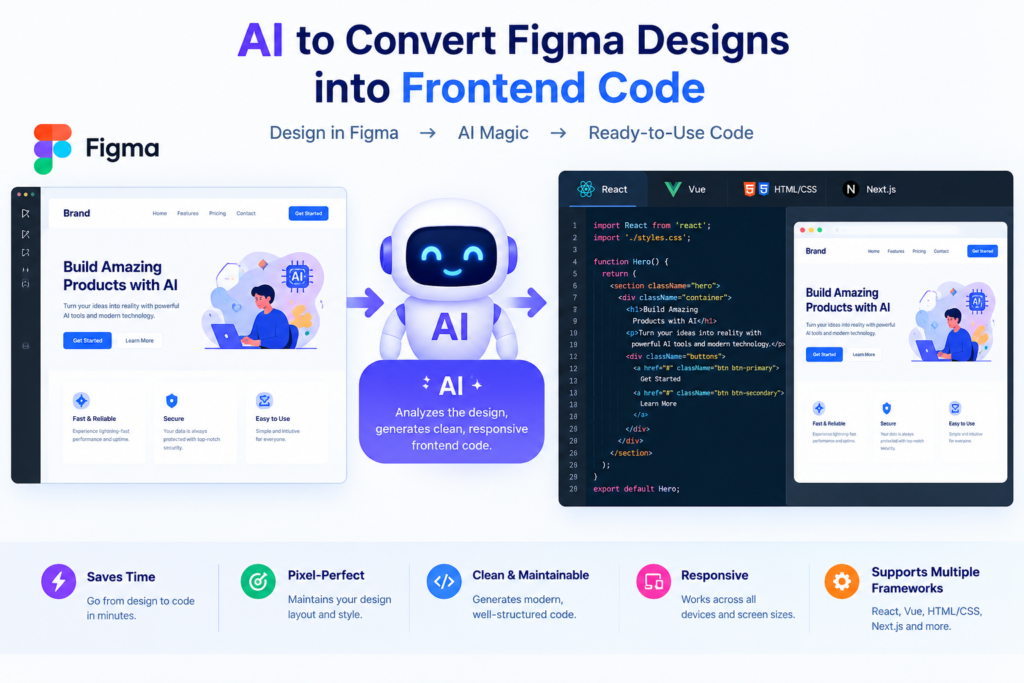
Use AI to Convert Figma Designs into Frontend Code
Turning a design into a working website takes time. Designers create layouts, buttons, forms, and other interface elements in Figma. Developers then convert those designs into HTML, CSS, JavaScript, or React components.
This process can involve many repetitive tasks. Developers must measure spacing, select fonts, match colors, build layouts, and test different screen sizes. Even a small design change can require several updates to the frontend code.
Fortunately, artificial intelligence is changing this process.
AI Figma to code tools can analyze design layouts and generate frontend code. They can help developers create HTML structures, write CSS styles, build React components, and improve responsive layouts. Some tools also support direct Figma imports, reusable design systems, and visual editing.
However, AI doesn’t automatically turn every design into perfect production-ready code. Developers still need to check accessibility, performance, responsiveness, and code quality.
In this guide, you’ll learn how to convert Figma designs into frontend code using AI, which tools to consider, how the process works, and how to improve the final results.
1. Understanding AI Figma to Code Conversion
What Is AI Figma to Code?
AI Figma to code is a development approach that uses artificial intelligence to convert visual designs into frontend code.
A designer creates a user interface in Figma. An AI-powered tool then analyzes the design and generates code that recreates its visual structure.
Depending on the tool, the output may include:
- HTML for page structure.
- CSS for colors, spacing, and layout.
- JavaScript for interactive elements.
- React components for reusable interfaces.
- Responsive styles for different screen sizes.
- Assets and references to images or icons.
- Code that connects with existing development frameworks.
For example, imagine that you’ve designed a landing page with a navigation bar, hero section, call-to-action button, and three feature cards.
Building this page manually requires writing markup, styling each element, and checking the final appearance against the design.
An AI Figma to code tool can generate an initial version of that page automatically. You can then review the output and adjust it to match your requirements.
How Does AI-Powered Design Conversion Work?
The process generally involves four stages.
Stage 1: Design analysis
The tool reads available design information, such as frames, text, colors, images, dimensions, and component relationships.
Stage 2: Layout interpretation
The system identifies how interface elements relate to one another. For example, it may recognize a horizontal navigation bar, a two-column hero section, or a grid of cards.
Stage 3: Intelligent code generation
The tool converts its interpretation into HTML, CSS, React, or another supported format.
Stage 4: Preview and refinement
The generated page is rendered in a browser or visual editor. Developers compare the output with the original design and fix any differences.
Not every tool follows exactly the same process. Some use direct Figma integration, while others work with exported images, design URLs, or screenshots.
The Role of Machine Learning in Frontend Development
Machine learning in frontend development helps AI systems identify common interface patterns and generate code based on their training and available context.
For example, an AI coding assistant may recognize a familiar card layout and suggest a reusable component. It may also recommend CSS Grid for a gallery or Flexbox for a navigation bar.
Still, AI doesn’t always understand the designer’s original intention. A visual arrangement might represent a reusable component, a one-time section, or a special responsive layout.
That’s why developers should provide clear instructions and review generated code before using it in a live project.
2. Use AI to Convert Figma Designs into Frontend Code Benefits and Development
Faster Development
One of the main advantages of AI frontend development is reduced manual work.
Developers can use automated UI coding to create the first version of a page instead of writing every element from scratch.
This is especially useful for:
- Landing pages.
- Marketing websites.
- Product dashboards.
- SaaS interfaces.
- Website prototypes.
- Repeated interface components.
The time saved depends on the complexity of the design, the quality of the source file, and the capabilities of the selected tool.
Better Design Consistency
A well-organized Figma file often includes a design system with shared colors, fonts, spacing values, and reusable components.
When these details are available to the conversion tool, they can help maintain consistency across the generated interface.
For example, a website may use the same button color, border radius, and typography throughout its pages. Reusing these values makes the design easier to maintain.
However, developers must still check whether the generated code follows the intended design system.
Easier Collaboration
Designers and developers often work in separate tools. This can lead to misunderstandings about spacing, font sizes, layouts, and component behavior.
Figma to frontend code workflows help bridge this gap by creating a working version of the design that both teams can inspect.
Designers can review the result in a browser, while developers can identify missing information before implementation.
Faster Prototyping
AI code generation is particularly useful when a team needs to test an idea quickly.
Instead of building an entire application, developers can create a functional prototype and gather feedback.
For example, a startup could use AI to create an early version of a subscription page. The team can test the layout and messaging before investing in a complete backend.
Less Repetitive Work
Frontend development includes many tasks that follow similar patterns.
Creating cards, buttons, forms, navigation bars, and standard page sections can become repetitive. AI-assisted frontend engineering can automate parts of this work.
Developers can then focus on business logic, user experience, security, and complex interactions.
3. Best AI Tools for Figma to Code Conversion
Choosing the right Figma to code tool depends on the project, the framework, and the desired level of control.
The following tools serve different purposes. Their features and integrations may change, so review their current documentation before selecting one.
3.1 Builder.io
Builder.io offers visual development capabilities and tools for connecting designs with frontend implementations.
It may be useful for teams that want to translate design work into website components and combine visual editing with existing development workflows.
Explore the official website: https://www.builder.io/
3.2 Anima
Anima focuses on design-to-code workflows and supports converting design concepts into frontend implementations.
It is worth evaluating when you need to generate interface code from Figma designs and want to reduce repetitive implementation work.
Explore the official website: https://www.animaapp.com/
3.3 Locofy.ai
Locofy.ai provides design-to-code functionality intended to help developers turn interface designs into frontend implementations.
It may suit projects that require a faster path from design prototypes to code that developers can refine.
Explore the official website: https://www.locofy.ai/
3.4 v0 by Vercel
v0 is an AI-powered interface development tool that generates user interface code from natural-language prompts and other supported inputs.
It can be useful when you want to build or refine React-based interfaces. Check its current Figma integration options and supported workflows before relying on a direct design import.
Explore the official website: https://v0.dev/
3.5 GitHub Copilot
GitHub Copilot is an AI coding assistant that helps developers write, explain, and modify code.
It isn’t simply a one-click Figma conversion tool. However, it can help developers refine code generated by a design conversion tool, create reusable components, write tests, and debug frontend issues.
Explore the official website: https://github.com/features/copilot
Tool Comparison
|
Tool |
Main Use |
What to Evaluate |
|
Builder.io |
Visual development and design-to-code workflows |
Framework support and integration |
|
Anima |
Figma-related code generation |
Output quality and component structure |
|
Locofy.ai |
Design-to-code conversion |
Responsive behavior and supported exports |
|
v0 |
AI-assisted interface generation |
Framework compatibility and import options |
|
GitHub Copilot |
Code writing and refinement |
Repository context and developer control |
Which tool should you choose?
Start with the tool that best matches your workflow. If direct Figma conversion is essential, prioritize tools that explicitly support it. If you already have generated code, an AI coding assistant may be more useful for improving that code.
Test your preferred tool with one representative page before using it for an entire website.
4. Step-by-Step Guide to Convert Figma Designs into Frontend Code Using AI
You can make the conversion process more reliable by following a structured workflow.
Step 1: Prepare Your Figma Design
Before generating code, organize your Figma file.
Use meaningful names for layers and components. For example, name a button Primary Button instead of Frame 42.
Group related elements together. Keep navigation, hero sections, forms, and cards in separate frames where practical.
Also check that your design includes:
- Consistent spacing.
- Defined typography.
- Reusable components.
- Correct image assets.
- Clear layout relationships.
- Mobile and desktop variations, when available.
A clean design gives the conversion tool better information to work with.
Step 2: Select an AI Figma to Code Tool
Choose a tool based on your preferred output.
If your project uses React, look for support for React components and the styling approach used by your application.
If you need a simple static page, HTML and CSS may be enough.
Check whether the tool supports direct Figma access, design imports, or screenshot-based generation. These methods aren’t interchangeable, and each provides different levels of design information.
Step 3: Import the Design
Follow the tool’s supported process to connect or import your Figma design.
Select the correct frame rather than importing unrelated screens.
If the tool offers options for assets, reusable components, responsive layouts, or frameworks, configure them according to your project.
Avoid sharing confidential design files with services that haven’t been approved for your organization’s data.
Step 4: Generate the Initial Code
Start the AI code generation process. The output may contain markup, styles, components, and references to assets. Some tools also provide a live preview.
Don’t expect the first result to be perfect. Treat it as a starting point. Inspect whether the page includes all the important sections and whether the generated layout resembles the original design.
Step 5: Preview the Website
Run the generated project in the supported preview environment or your local development setup. Compare the page against Figma.
Look for differences in:
- Element positioning.
- Font size and weight.
- Colors and contrast.
- Image dimensions.
- Button spacing.
- Section heights.
- Alignment and margins.
Fix major layout issues before spending time on small visual details.
Step 6: Improve the Generated Code
Use an AI coding assistant to refine the output. For example, you could provide this prompt:
“Review this React landing page against the supplied Figma design. Identify layout differences, replace unnecessary fixed dimensions with flexible layouts where appropriate, improve component reuse, and preserve the existing visual style. Explain each change before applying it.”
Specific instructions usually produce more useful results than a vague request such as “Make this website better.”
Step 7: Test and Publish
Before publishing, verify the page at different viewport sizes.
Test links, forms, navigation, keyboard access, and any interactive elements.
Run the project’s available checks, including linting, automated tests, and production builds.
Finally, deploy the application using your normal development and release process.
AI can speed up implementation, but the final responsibility for a reliable website remains with the development team.
5. How to Generate React Code from Figma Designs
React is a popular choice for projects that need reusable UI components and interactive interfaces.
A Figma design can contain many elements that map naturally to React components, including buttons, navigation bars, cards, forms, and page sections.
What Are React Components?
React components are reusable pieces of a user interface.
For example, a website might use one navigation component across all pages and a reusable card component for product listings.
Instead of duplicating the same markup, developers can create a component once and use it wherever needed.
AI tools can help identify these patterns, although developers should review the generated component boundaries.
Example: A Simple React Component
Suppose your Figma design contains a hero section with a heading, description, and button.
An AI tool might help generate a component like this:
function HeroSection() {
return (
<section className=”hero”>
<div className=”hero__content”>
<h1>Build Better Digital Experiences</h1>
<p>
Turn your ideas into useful digital products
with a modern development workflow.
</p>
<a className=”hero__button” href=”#features”>
Explore Features
</a>
</div>
</section>
);
}
export default HeroSection;
You can style the component with CSS:
.hero {
display: flex;
align-items: center;
padding: 4rem 1.5rem;
background: #f5f7fb;
}
.hero__content {
width: 100%;
max-width: 720px;
margin: 0 auto;
}
.hero h1 {
font-size: clamp(2rem, 5vw, 3.5rem);
line-height: 1.15;
}
.hero__button {
display: inline-block;
margin-top: 1rem;
padding: 0.75rem 1.25rem;
border-radius: 0.5rem;
background: #2457d6;
color: white;
text-decoration: none;
}
This is a simplified example, not a complete conversion of a particular Figma file. The exact spacing, colors, and typography should match your actual design.
Organize Components Carefully
A useful component structure might look like this:
src/
components/
Navbar.jsx
HeroSection.jsx
FeatureCard.jsx
Footer.jsx
pages/
HomePage.jsx
styles/
global.css
Keep components focused on clear responsibilities.
Don’t create a separate component for every tiny element without a reason. At the same time, avoid placing an entire complex application inside one enormous component.
Use AI for Code Review
Once the initial React code is ready, ask your AI coding assistant to review:
- Repeated markup.
- Unnecessary state.
- Missing keys in rendered lists.
- Poor component separation.
- Accessibility issues.
- Unused styles.
- Hard-coded values that should be shared.
Review the recommendations before accepting them. AI-generated code may introduce new problems while attempting to fix existing ones.
6. How to Create Responsive Web Designs with AI
A website must work across different screen sizes.
A layout that looks excellent on a desktop monitor may break on a phone. Navigation items can overlap, cards can become too narrow, and text may become difficult to read.
AI can help generate responsive CSS, but the result still requires testing.
Use Flexible Layouts
CSS Grid and Flexbox are useful for creating layouts that adapt to available space.
For example:
.feature-grid {
display: grid;
grid-template-columns: repeat(3, minmax(0, 1fr));
gap: 1.5rem;
}
@media (max-width: 768px) {
.feature-grid {
grid-template-columns: repeat(2, minmax(0, 1fr));
}
}
@media (max-width: 480px) {
.feature-grid {
grid-template-columns: 1fr;
}
}
This example displays three columns on wider screens, two columns on medium screens, and one column on narrow screens.
The breakpoints are examples. Your design may need different values.
Provide Responsive Design Context
If your Figma file contains mobile and desktop frames, use both where supported.
This helps the tool understand which elements should move, resize, disappear, or change order.
For example, a desktop hero section might use text on the left and an image on the right. On mobile, the same content may need to appear in a vertical layout.
If only a desktop design is available, provide clear instructions about the expected mobile behavior.
Test Beyond Common Screen Sizes
Don’t test only at one desktop width and one phone width.
Resize the browser and inspect intermediate widths. Look for horizontal scrolling, clipped content, overlapping buttons, and images that stretch unexpectedly.
Use browser developer tools to test multiple viewports and correct problems before launch.
7. How to Improve AI-Generated Frontend Code
AI-generated code can look correct while still having structural, accessibility, or performance problems.
A production-ready frontend needs more than a visual match.
Improve Code Readability
Use meaningful names for variables, components, classes, and functions.
Remove unused styles and unnecessary dependencies. Follow the coding conventions already used by your project.
If the AI tool produces a large component, ask it to identify logical sections that could be separated into reusable components.
Check Accessibility
Make sure interactive elements can be used with a keyboard.
Use semantic HTML elements, suitable labels for form controls, and meaningful alternative text for informative images.
Check color contrast and visible focus indicators.
Use buttons for actions and links for navigation. Don’t rely on visual styling alone to communicate meaning.
Optimize Performance
Large images, excessive JavaScript, and unnecessary dependencies can slow down a website.
Consider:
- Compressing images.
- Using suitable image formats.
- Loading below-the-fold images when appropriate.
- Removing unused packages and code.
- Avoiding unnecessary component re-renders.
- Measuring page performance before and after changes.
Don’t assume that code generated by AI is automatically optimized.
Protect Security
Generated frontend code should not contain exposed API secrets, passwords, or private credentials.
Client-side code is visible to users, so sensitive operations and secret keys should be handled on a secure backend.
Review dependencies, form handling, authentication flows, and data access before deployment.
Compare the Final Result with Figma
Use visual comparison to check the implementation against the original design.
Review typography, spacing, alignment, colors, and component dimensions.
Where possible, use screenshot comparison or visual regression testing to identify differences.
Fix important issues first. A missing section matters more than a minor shadow mismatch.
8. Common Challenges in Figma to Frontend Code Conversion
Challenge 1: Incorrect Layouts
AI may interpret overlapping elements or unusual positioning incorrectly.
Solution: Organize the design into clear frames, use meaningful layer names, and specify layout behavior in your prompt.
Challenge 2: Poorly Structured Code
Some tools generate duplicated markup or overly complicated CSS.
Solution: Ask for a code review and refactor the output into reusable components. Follow the conventions of your existing project.
Challenge 3: Missing Interactions
A visual design doesn’t always explain how a menu, modal, or form should behave.
Solution: Provide interaction requirements separately. Describe what should happen when users click buttons, submit forms, or open menus.
Challenge 4: Inconsistent Responsive Layouts
A tool may reproduce the desktop design without adapting it properly to mobile screens.
Solution: Supply mobile layouts when possible and test the result at several viewport sizes.
Challenge 5: Inaccurate Asset Handling
Images and icons may be missing, incorrectly sized, or replaced with unsuitable alternatives.
Solution: Check asset imports, use approved original files, and verify that the correct image appears in each section.
Challenge 6: Difficult Maintenance
Generated code may work initially but become difficult to update.
Solution: Use reusable components, shared design tokens, clear naming, and version control. Avoid keeping large amounts of duplicated code simply because it was generated automatically.
9. Best Practices for an Efficient AI Web Development Workflow
To get better results from AI-powered design conversion, combine automation with sound frontend engineering.
Start with a Small Section
Don’t convert an entire complex application in one attempt.
Start with a navigation bar, hero section, or card grid. Review the generated code, correct the output, and use the lessons from that process for the rest of the project.
Write Clear Prompts
Tell the AI tool what you need.
Specify the framework, styling method, responsive requirements, accessibility expectations, and any existing project constraints.
For example:
“Convert this Figma landing page into React components using CSS Grid and Flexbox. Preserve the design’s typography, colors, and spacing. Make the layout responsive for desktop, tablet, and mobile. Use semantic HTML and accessible controls. Reuse existing components where possible, and do not add unnecessary dependencies.”
This gives the tool more useful context.
Maintain a Shared Design System
Define common colors, spacing values, typography, and reusable components.
When your design system is clear, developers can maintain consistency across multiple pages.
AI can help generate or update shared styles, but the team should control the final design tokens.
Use Version Control
Commit working code before making major AI-assisted changes.
Review differences before merging changes into the main branch. Run tests after refactoring and keep a clear record of what changed.
This makes it easier to reverse a change if the generated code causes a problem.
Measure Results
Track how much time the workflow saves and how much rework it introduces.
Useful measures include:
- Time required to build a page.
- Number of visual corrections.
- Accessibility issues found.
- Test failures.
- Build errors.
- Page performance.
- Ease of future maintenance.
The best AI workflow isn’t necessarily the one that generates code fastest. It’s the one that produces reliable code with less total effort.
AI Figma to code tools are changing how developers turn visual concepts into working websites. They can reduce repetitive coding, speed up prototyping, support reusable components, and make collaboration between designers and developers easier.
However, successful Figma to frontend code conversion requires more than generating a block of code. Developers must prepare the design, choose the right tool, review the output, test responsive layouts, and improve code quality.
The most effective approach is to combine AI-powered design conversion with human expertise. Let AI handle suitable repetitive tasks while developers focus on architecture, accessibility, security, performance, and user experience.
Know More:
”FAQs”
1. What is the best AI tool for converting Figma designs into frontend code?
The best tool depends on your requirements. Builder.io, Anima, and Locofy.ai are options to evaluate for design-to-code workflows. v0 and GitHub Copilot can help with AI-assisted interface development and code refinement. Compare their current features, framework support, pricing, and output quality before deciding.
2. Can AI convert Figma designs into HTML and CSS?
Yes. Some AI-powered design conversion tools can generate HTML and CSS from supported Figma inputs. The quality depends on the design, tool, and complexity of the layout. You'll generally need to review the output and correct visual or responsive issues.
3. How can I generate React code from Figma designs?
Choose a tool that supports your Figma workflow and React output. Import the design, configure the supported framework options, and generate the initial components. Then inspect the code, improve component reuse, test responsiveness, and validate the result in a browser.
4. Is AI-generated frontend code production-ready?
Not automatically. AI-generated code may need changes to improve accessibility, security, performance, responsive behavior, and maintainability. A developer should review and test the output before deploying it to a live website.
5. Can beginners use AI to convert UI designs into code?
Yes. AI tools can help beginners understand how visual elements map to HTML, CSS, and React. However, learning basic frontend concepts remains important. Beginners should understand how layouts, components, browser rendering, and responsive styles work so they can identify and fix mistakes.
6. Does Figma to code conversion support responsive websites?
Some tools can generate responsive layouts or use responsive information provided in the design. Results vary. Providing desktop and mobile designs, clear layout instructions, and suitable breakpoints can improve the output. Always test the generated website on different screen sizes.
7. Is AI Figma to code better than manual coding?
Neither approach is always better. AI can speed up repetitive work and prototyping, while manual coding provides direct control over architecture and implementation. A hybrid approach often works well: use AI to generate the initial interface, then refine and test it manually.
8. Can AI convert a complete Figma website into a working application?
Some tools can generate multiple pages or larger interface structures, but capabilities differ. A visual design alone doesn't provide all the information required for authentication, databases, business logic, payment processing, or other backend functions. Those features need separate implementation and testing.
9. Does AI-generated frontend code affect SEO?
It can affect SEO indirectly. Poor HTML structure, slow loading, inaccessible content, and broken navigation can harm the user experience and search performance. Use semantic HTML, optimize page speed, provide descriptive page titles, and ensure important content is accessible to search engines.
10. How can developers improve the accuracy of AI-generated code?
Start with a well-organized Figma file, choose a suitable tool, and provide specific instructions. Use the correct assets, define responsive behavior, compare the browser output with the original design, and review the generated code. Automated tests and visual comparisons can help catch errors.